Account Users
Learn how to assign the right user type for new users and deactivate users
Adding Users & User Type Permissions
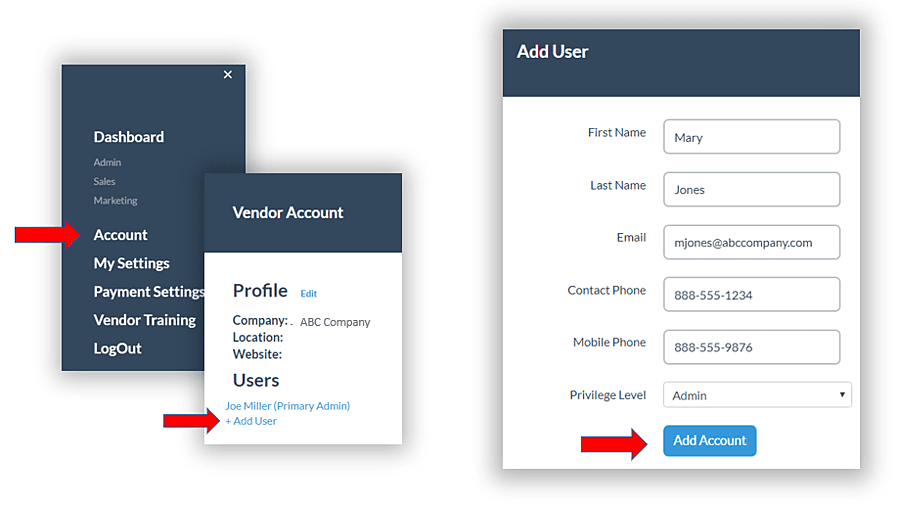
Did you know you can add additional team members to help manage your account information? To do so:
- Click on the Main Menu
- Select Account
- Click Add User
- Enter First Name, Last Name, Email, and Privilege Level
- Click Add Account
User Types & Permissions
- Primary Admin: Access to all areas of the account and recipient of all platform notifications
- Admin: Access to all areas of the account
- Sales: Access to opportunities when assigned as the Primary Contact
- Marketing: Access to the vendor marketing tools
- Billing: Access to payment reconciliation for vendors enrolled in the Vendor Incentive Program (VIP)
TIP: Provide Admin access for users who will manage the Profile, Products or RFI.
Once you’ve added the user, our system will send an email to the address provided so the team member can complete setting up their access.
Deactivating Users
Any user with an Admin user type can deactivate a user.
- Go to Account
- Select the user from the list
- Click the red Deactivate button
- The user will no longer be able to log in